


zplCloud Blog
Zebra Cloud Setup Speed Run: Sealed Box to Production Label in About 15 Minutes
Every command in full, in the order you type them, with the two steps where people actually lose time.
The claim
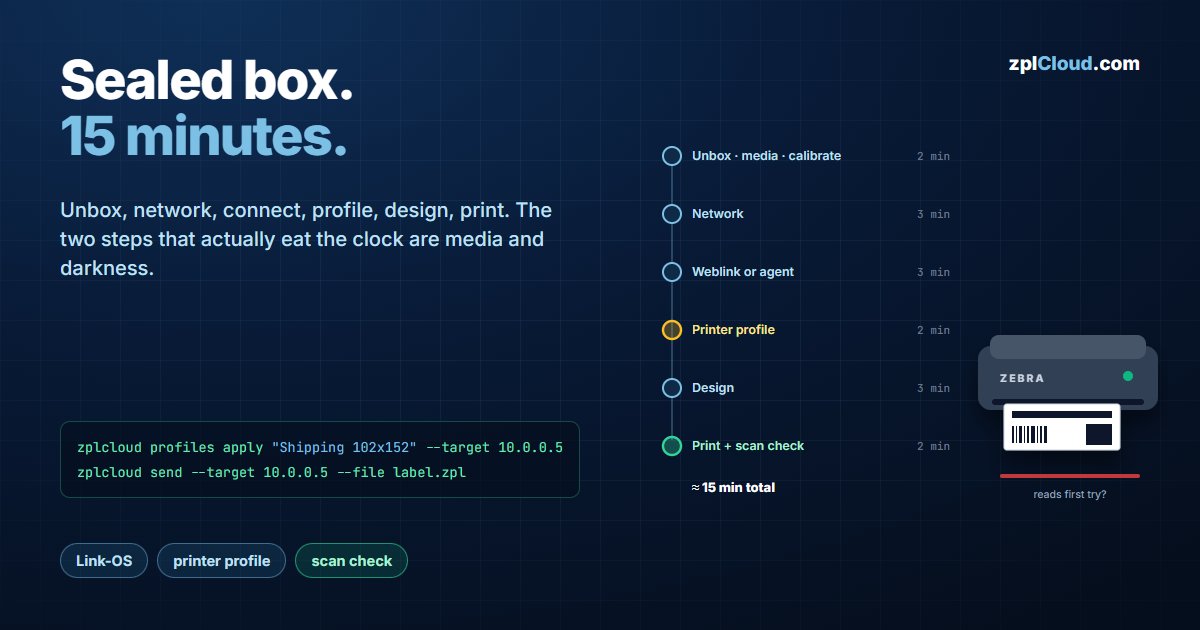
A new Link-OS printer should be printing production labels in about fifteen minutes, not in an afternoon. Below is the run with real commands. Two steps consistently eat the budget - media calibration and darkness - so they get the attention here rather than a bullet point.
0 - Unbox (2 min)
Remove the transport locks and the printhead protection, load the media, and for thermal transfer load the ribbon. Power on and let it calibrate.
If the printer feeds several blank labels and stops, it is calibrating gap/black-mark sensing. Let it finish; interrupting is how you end up chasing a label-length problem in step 5.
1 - Network (3 min)
- Ethernet: plug it in, DHCP does the rest.
- Wi-Fi: front panel, or the Android app over USB if the panel is uncooperative.
Write down the IP. You need it exactly once.
2 - Connect to zplCloud (3 min)
Pick one:
Weblink - the printer keeps an outbound connection to the platform:
irm "https://zplcloud.com/weblink-deploy.ps1?hostname=printer01&apikey=sk_zplcloud_XXXX" | iex
curl -fsSL "https://zplcloud.com/weblink-deploy.sh?hostname=printer01&apikey=sk_zplcloud_XXXX" | bash
The script pulls the printer's three certificates, uploads them over TCP 9100, sets the Weblink and NTP variables, and resets the device. If the hostname does not resolve on your network, add &ip=10.0.0.5 - the hostname still picks the certificate, the IP is just the TCP target.
CLI agent - one machine in the LAN registers the printer:
curl -fsSL https://zplcloud.com/install-cli.sh | sh
zplcloud proxy --agent "Warehouse Berlin" --service-install --api-key sk_zplcloud_XXXX
Both are outbound-only. No inbound port, no firewall change.
3 - Apply a printer profile (2 min)
Printers ship with generic settings that do not match your media.
zplcloud profiles list
zplcloud profiles apply "Shipping 102x152" --target 10.0.0.5
The profile pushes darkness (^MD), speed (^PR), media handling and any SGD variables it defines. Variables can be filled at apply time:
zplcloud profiles apply 42 --target 10.0.0.5 --var gtin=4006381333930 --var charge=LOT-42
This is the step that decides whether step 5 works. Darkness that is too low gives a barcode that scans in the office and fails at the carrier; too high and thin bars bleed together. Direct thermal and thermal transfer need different values, and so does every media supplier.
4 - Design the label (3 min)
Open the designer, start from a template, add the fields that vary, and bind them to your data. Check the PNG/PDF/SVG preview - it is rendered by the same engine that produces the ZPL, so it is not an approximation of the output.
5 - Print and verify (2 min)
zplcloud send --target 10.0.0.5 --zpl "^XA^FO50,50^A0N,40,40^FDSpeed run^FS^XZ"
zplcloud send --target 10.0.0.5 --file label.zpl
The flag is --target, and it takes an IP or a hostname. Add --port only for a non-standard port; the default is 9100.
Then scan the barcode with a real scanner, not a phone camera app. A phone is forgiving about contrast and quiet zones in ways a warehouse scanner is not. If it does not read first time:
- raise darkness by 2 in the profile and re-apply, then re-print,
- check the quiet zone - a barcode too close to the label edge fails regardless of darkness,
- verify the label length in the design matches the physical media.
6 - Hand it to the people who print (2 min)
Create a Print View from the design, choose the editable fields, and share the link or print the QR code for the wall next to the printer. That is what makes the setup survive contact with a shift that was not in the room today.
The run
| Step | What | Time |
|---|---|---|
| 0 | Unbox, media, calibrate | 2 min |
| 1 | Network | 3 min |
| 2 | Weblink or agent | 3 min |
| 3 | Printer profile | 2 min |
| 4 | Design | 3 min |
| 5 | Print + scan check | 2 min |
| 6 | Print View | 2 min |
About 15 minutes, of which roughly four are the printer calibrating and resetting while you do something else.
What is not in the 15 minutes
Honest list: a printer with a firmware version too old for Weblink, a Wi-Fi network with client isolation, and label stock that does not match any profile you have. Each of those turns a speed run into an afternoon - and none of them are printer setup problems.